Previously, logging into your Yala app required entering your login details and then confirming with an OTP. With the passkey feature, that process is now faster and easier, all you need is your passkey.
A passkey uses your device's built-in security (such as fingerprint, or device passcode) to verify your identity, so you no longer need to remember a password or wait for an OTP.
Steps to create a passkey (Applicable to iOS and Android)
-
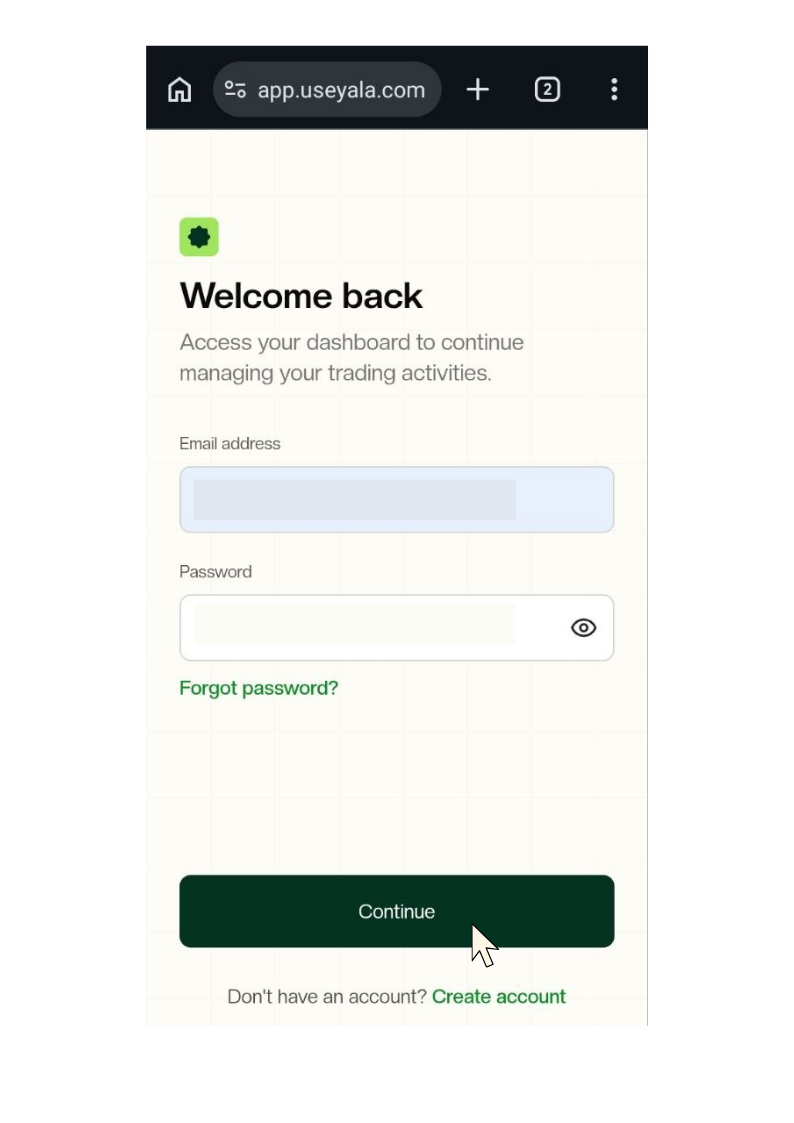
Open the Yala app or go to app.useyala.com.
-
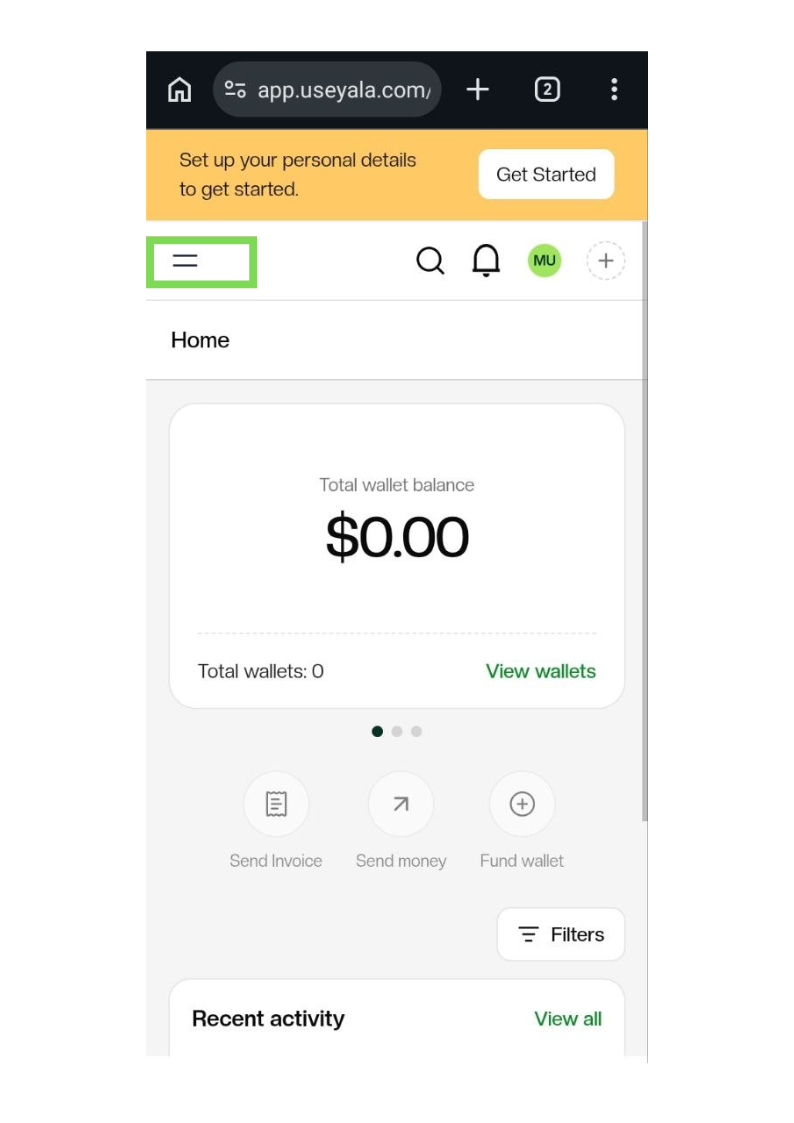
Tap the (=) menu at the top left.
-
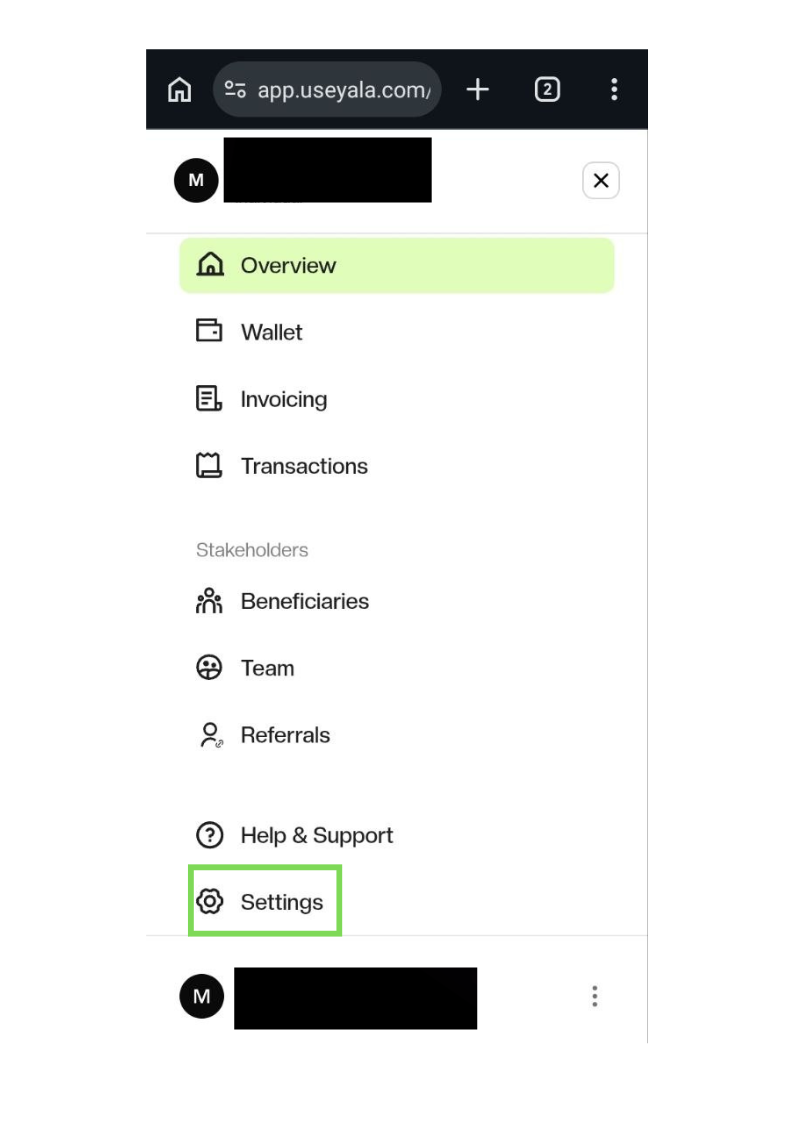
Tap on **Settings. **
-
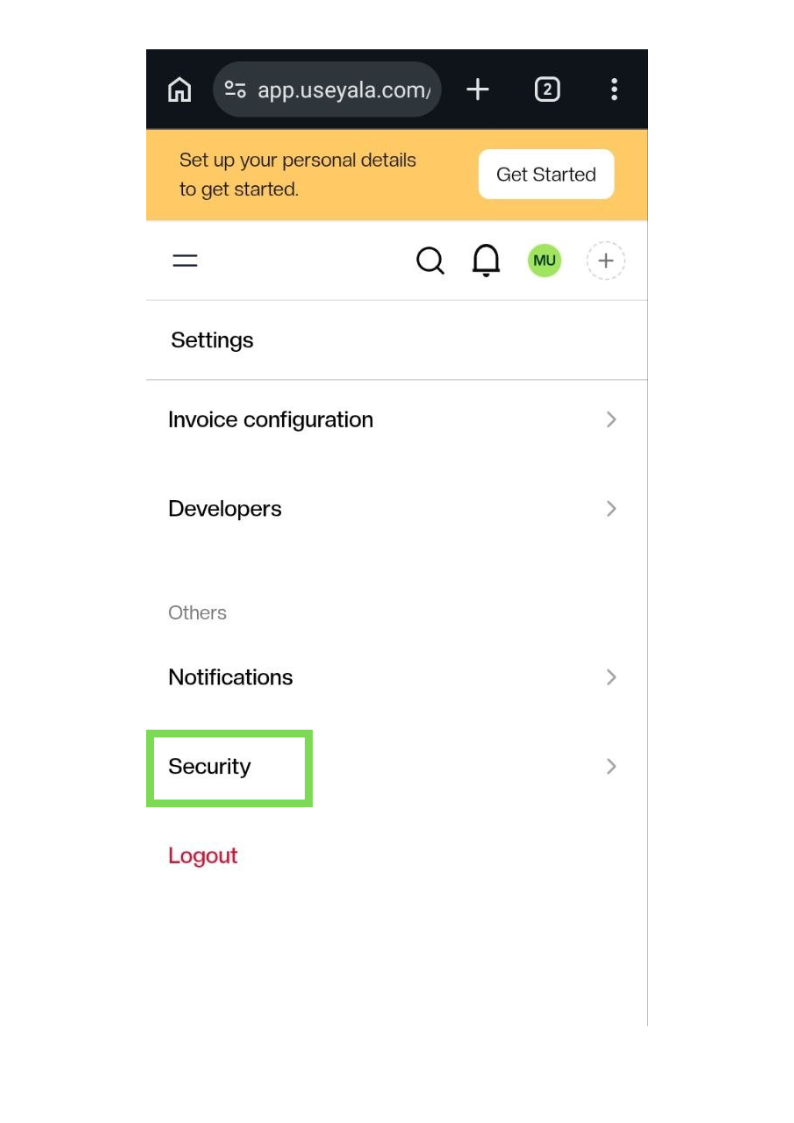
Scroll down and tap on Security.
-
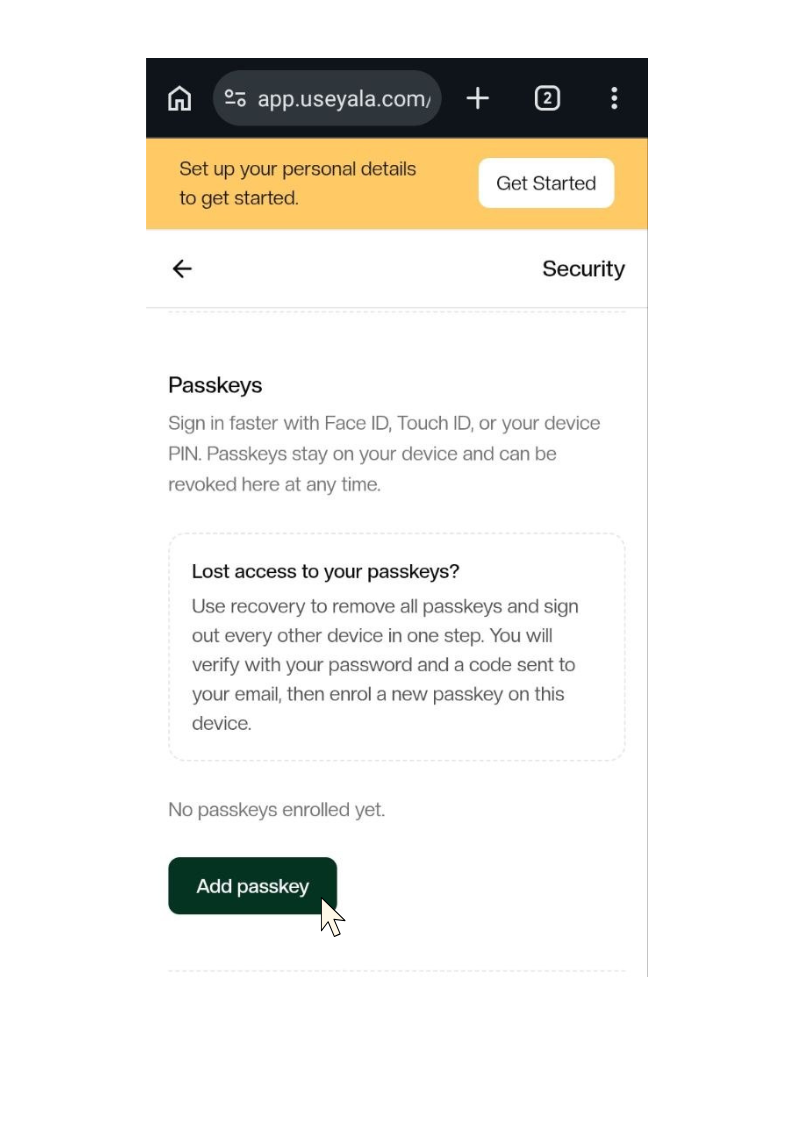
Tap on the Add Passkey button.
-
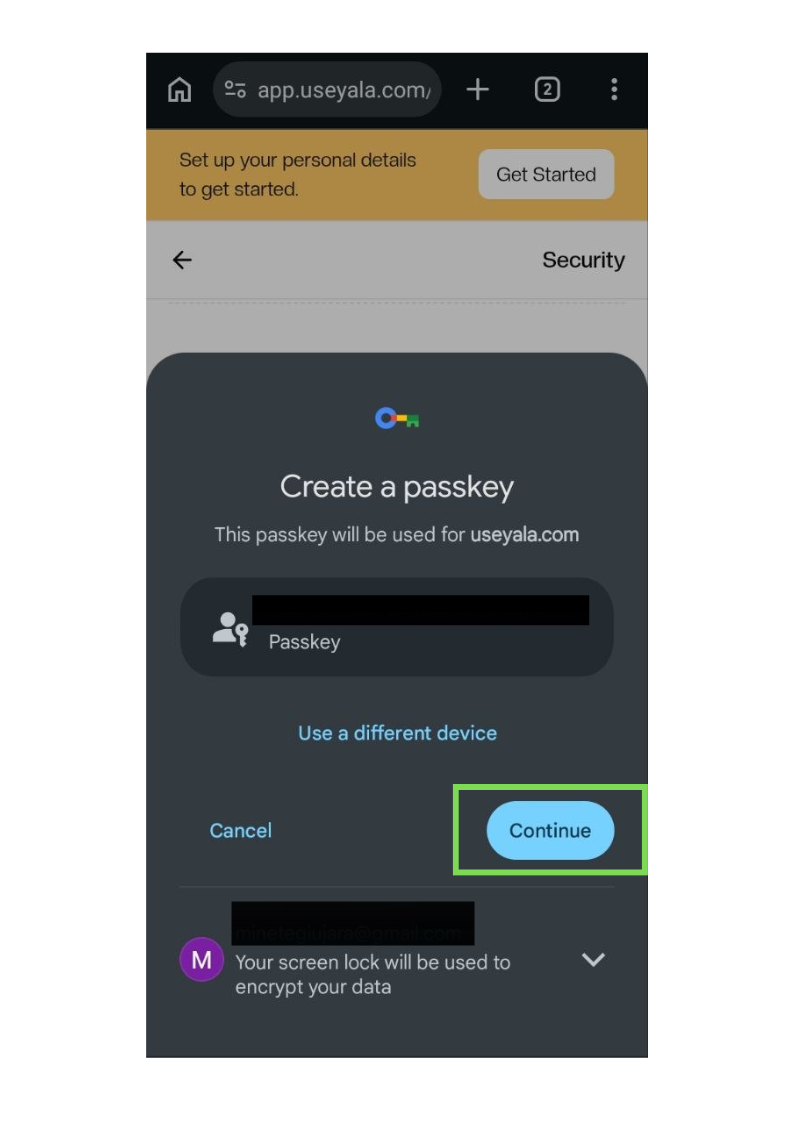
Click Continue on the pop-up that appears.
-
Input your device passcode
-
Click confirm.
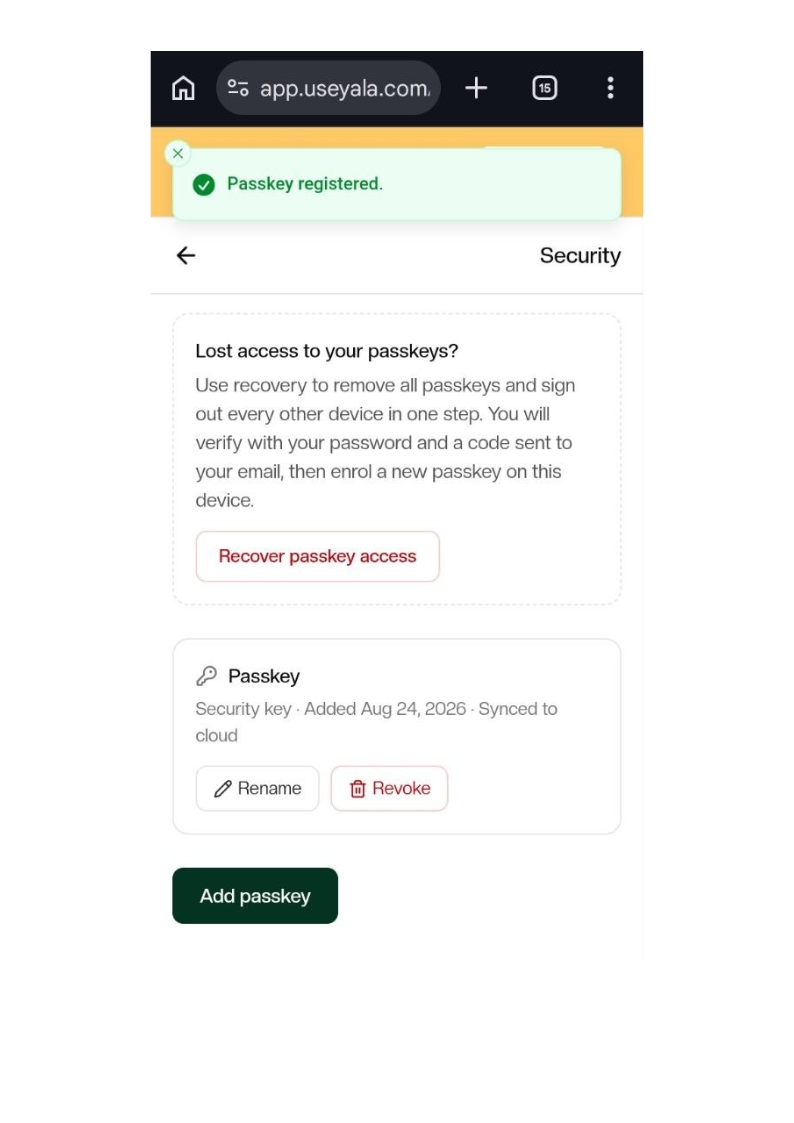
Once set up, your passkey is saved to your device. The next time you log in, you'll automatically see the option to continue with your passkey.
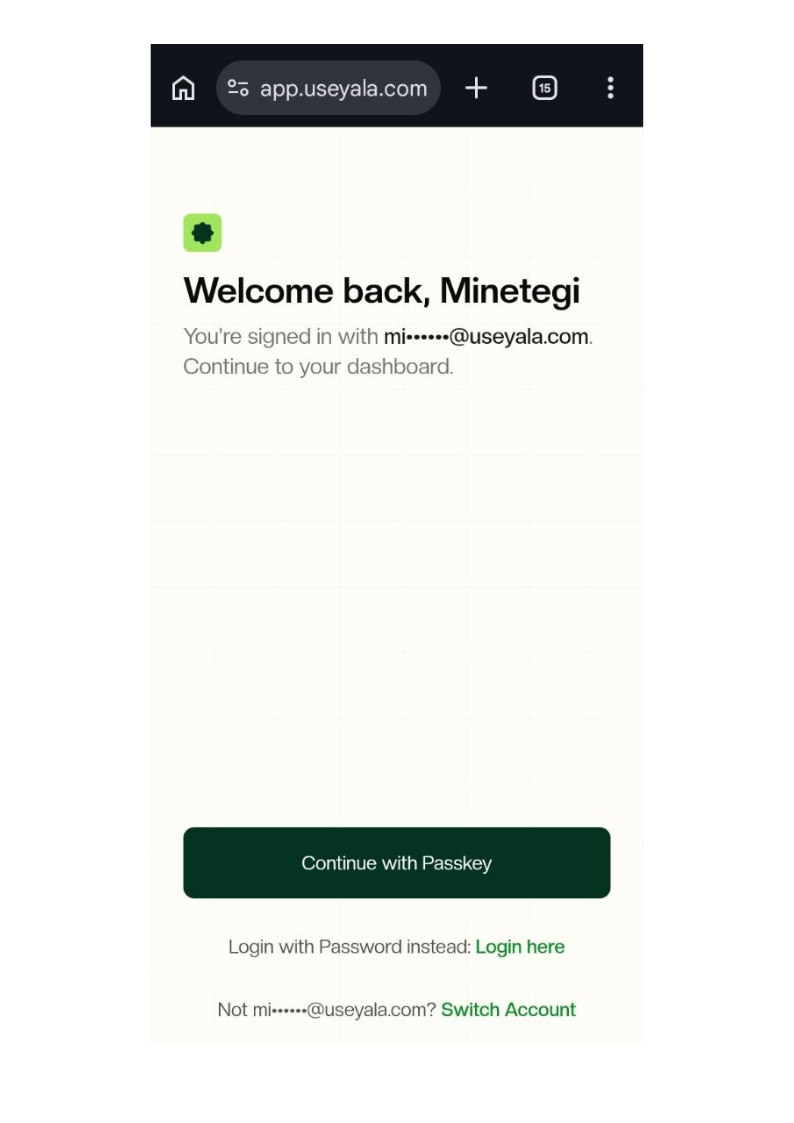
Logging in with Passkey
1. Click on Continue with Passkey
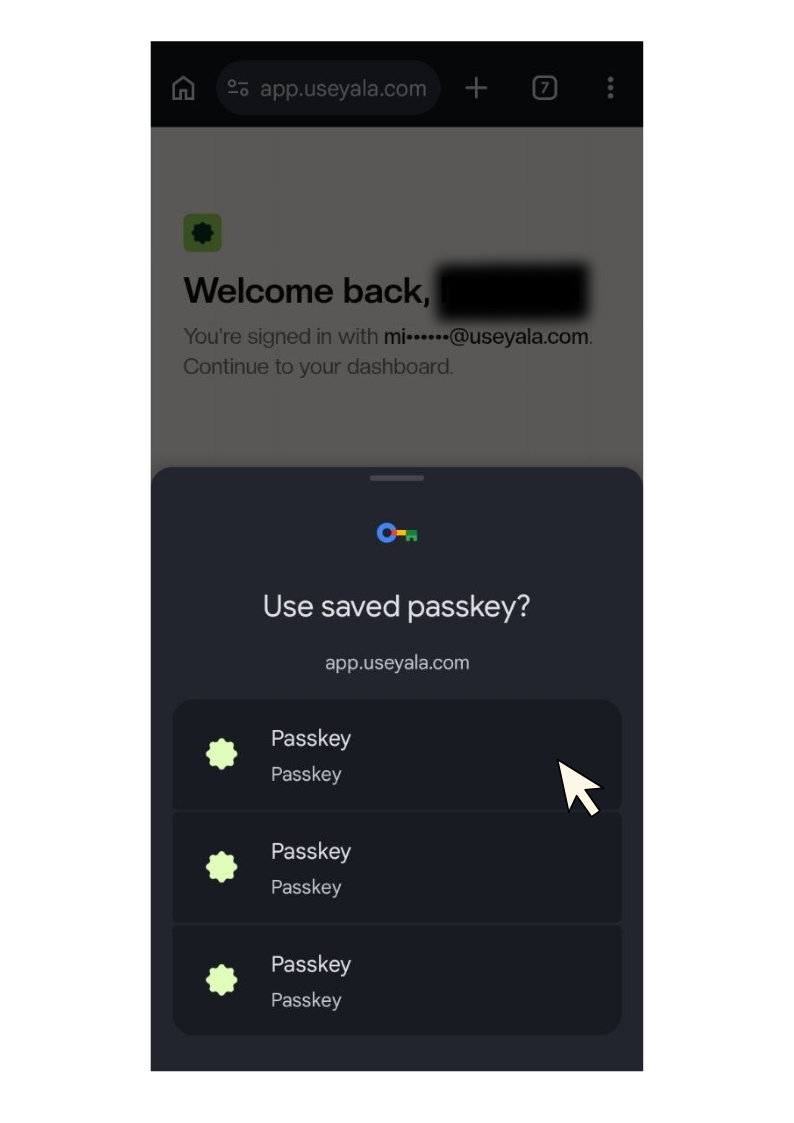
2. Select your Yala Passkey from the pop-up
.png?cw_image_width=409px)
3. Input your device passcode
The Yala home page will appear immediately after.
Tips
-
A passkey is tied to one device, so you'll need to set one up separately on each device you use to log in.
-
You can still log in with your password and OTP at any time, even after setting up a passkey.
-
Make sure your device passcode or Fingerprint is enabled, as this is required to create and use a passkey.
Check out the full video guide for clarity: [https://youtube.com/shorts/uAUK3gOVAHg]
Need help? Open Help & Support in the Yala app and start a conversation with our team.